




August 26, 2026

September 18, 2025
September 10, 2025
July 3, 2025
How to Manage AutoPay in GPay: View, Set Up, or Cancel Payments

Author
Shoonya Team
AutoPay is useful when you want recurring payments, such as electricity bills, EMIs, insurance, mutual funds, or subscriptions to run automatically. But if you no longer use a service or want better control over deductions, you may need to know how to cancel AutoPay in GPay.
In Google Pay, AutoPay mandates can be easily managed, which helps users check whether a mandate is active, awaiting approval, or already revoked/expired.
Let’s find out how!
What is AutoPay in GPay?
AutoPay in GPay is a recurring payment feature that automatically debits funds from your linked bank account via UPI.
You can use it for:
- Mobile bills
- LPG bills
- Electricity bills
- EMI payments
- OTT Subscriptions
- Insurance premiums
- Mutual fund payments
- Other merchant requests
What are the Features of AutoPay?
AutoPay automates payments, ensuring on-time payments and avoiding late fees.
Key features of AutoPay include:
- Automatic recurring payments: Payments are deducted automatically based on the approved mandate.
- UPI-based setup: You can approve AutoPay through UPI apps like Google Pay using your UPI PIN.
- Flexible frequency: Payments can be scheduled daily, weekly, monthly, quarterly, or yearly, depending on the merchant.
- Mandate management: You can view active, pending, and completed AutoPay mandates in the app.
- Pause or cancel option: Many AutoPay mandates can be paused or cancelled from the app.
- Approval alerts: You may receive a notification when a payment needs your approval.
- Limit-based authentication: Some higher-value payments may require UPI PIN approval before debit.
What is the GPay UPI AutoPay Limit?
UPI AutoPay rules depend on the mandate amount and merchant category.
- Google Pay currently mentions that if the mandate amount is less than ₹15,000, the first payment requires a UPI PIN.
- If the mandate amount exceeds ₹15,000, a UPI PIN is required when the payment is due.
- It also notes that a single debit may go up to ₹1 lakh when a UPI PIN is entered, and for some merchants, this can be up to ₹2 lakh.
Note: If a transaction requires your approval, you will receive a notification.
Knowing the GPay per day limit can also help you plan UPI transfers and avoid failed or delayed payments.
How to View Your GPay AutoPay List?
You can view your autopayments list in the AutoPay section of Google Pay.
Steps to view AutoPay mandates in GPay
- Open Google Pay.
- Tap your profile picture.
- Select AutoPay.
- Check the available tabs:
- Live: Active mandates that can be changed or revoked.
- Pending: Mandates waiting for your action.
- Completed: Executed, expired, or revoked mandates.
How to Set Up AutoPay Mandate in Google Pay?
To set up auto payment in GPay, select the UPI method in a merchant app/website, then confirm with your UPI PIN.
Here are the steps to set up auto payment in GPay
- Open the Google Pay app on your phone.
- Tap your profile picture at the top right.
- Select AutoPay.
- Go to the Pending tab.
- Select the mandate you want to accept the AutoPay request.
- Enter your UPI PIN to confirm.
How to Cancel AutoPay in GPay?
To turn off AutoPay in Google Pay, select mandate/subscription from the AutoPay Live tab (as highlighted in the image) and enter your UPI PIN to confirm.
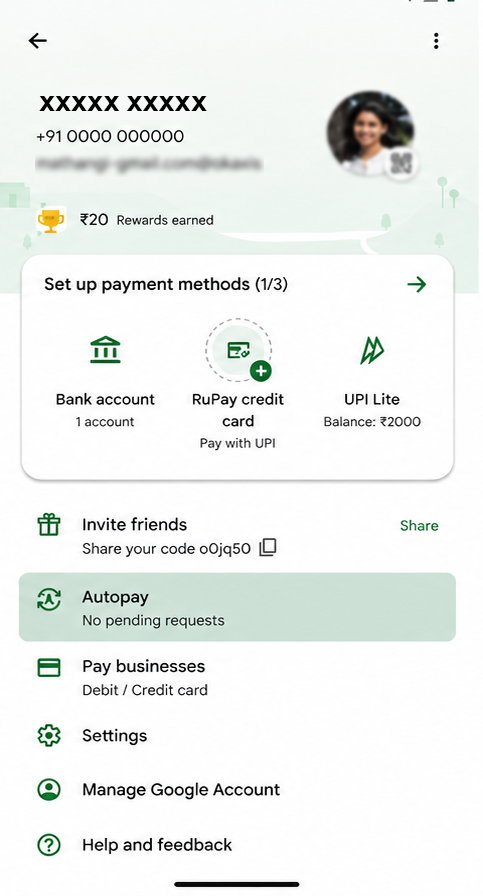
Here are detailed steps to cancel AutoPay in Google Pay:
- Open the Google Pay app on your phone.
- Tap your profile picture at the top right.
- Select AutoPay.
- Go to the Live tab.
- Tap the mandate that you want to stop.
- Select Cancel AutoPay.
- Enter your UPI PIN to confirm.
- Check the mandate status again to confirm that it is cancelled.
If you do not want to cancel the mandate permanently, Google Pay may also show a Pause AutoPay option for some live mandates.
How to Stop AutoPay in GPay Temporarily?
To temporarily stop Auto payment in GPay, select the active mandate and tap “Pause AutoPay. Remember that not all mandates/subscriptions may support pausing.
Here are the steps to pause AutoPay transactions:
- Open Google Pay and tap your profile picture.
- Select AutoPay.
- Navigate to the “Live” tab.
- Tap the specific mandate you wish to pause.
- Select “Pause AutoPay”.
- Enter your UPI PIN to authorise this change.
Note: Pausing or cancelling might not immediately stop the subscription service on the merchant’s end for the current billing cycle.
How to Confirm AutoPay is Off in GPay?
If the mandate is no longer visible under the Live tab and appears under Completed as revoked, expired, or completed, it is no longer active. Google Pay also advises users to check the mandate status after cancellation.
If you use UPI regularly for bills, shopping, or subscriptions, choosing the right cashback UPI app can make everyday payments more rewarding.
What Happens After You Cancel AutoPay?
After you cancel AutoPay, the merchant should not be able to debit your account under that mandate.
However, remember:
- Past payments are usually not refunded automatically.
- You may need to cancel the subscription separately with the merchant.
- Some loan-related mandates may not be cancellable directly through Google Pay.
- If the bank account linked to the mandate is inactive, cancellation may fail until the account is reactivated.
Safety Checks Before Cancelling AutoPay
Before you cancel any AutoPay mandate, check:
- Merchant name: Make sure you are cancelling the correct mandate.
- Debit frequency: Check whether it is weekly, monthly, or yearly.
- Next debit date: Cancel before the next scheduled payment.
- Subscription status: Cancel the service separately if needed.
- Payment proof: Save screenshots or confirmation messages.
Conclusion
Managing AutoPay in GPay helps you stay aware of where your money goes and gives you better control over recurring payments.
Reviewing your finances? Open a free demat account with Shoonya and invest in equity delivery, mutual funds, ETFs, bonds, and IPOs with zero brokerage and no AMC charges.
How to Cancel AutoPay in GPay: FAQs
To permanently cancel auto payment, open GPay, go to Profile > AutoPay > Live tab, select the mandate, tap Cancel AutoPay, and enter your UPI PIN. Once revoked, the merchant cannot debit money through that mandate.
To stop the AutoPay subscription, first cancel the AutoPay mandate from GPay. Then visit the merchant app or website and cancel the subscription from its billing or subscription settings.
To confirm the cancelled auto payment in Google Pay, go to your profile picture, select AutoPay, and check whether the mandate has moved out of the Live tab. If it appears under Completed as revoked, expired, or completed, it is no longer active.
Yes, you can contact your bank if you are unable to stop an automatic debit through the app. For UPI AutoPay mandates, first try cancelling the mandate in the UPI app, then contact the bank or merchant if the issue persists.
To stop auto payment in Google Pay, open the app, tap your profile icon, select AutoPay, choose the active mandate from the Live tab, and tap Cancel AutoPay.
Source: https://support.google.com
Disclaimer: This content is for education and awareness purposes only and should not be considered investment advice or a recommendation. Investments in securities markets are subject to market risks. Read all the related documents carefully before investing.


Explore Our Offerings

Stocks
Trade equities across NSE and BSE with zero delivery charges. Invest, hold or sell with a seamless experience.


Future & Options
Execute complex strategies with simple tools and real-time data.

IPOs
Apply to the latest IPOs in just a few taps. Stay updated and capture opportunities as they open.